

Get a copy of your PTD authorisation
When you were first granted your passenger transport driver (PTD) authorisation, the Department of Transport and Major Infrastructure (DTMI) sent a PDF copy of your authorisation to the email address you use to access DoTDirect. However, if you no longer have this email, getting another copy of your PTD authorisation is simple.
You can use your mobile phone or computer to get a copy of your authorisation through DoTDirect.
Mobile
1. Log into your DoTDirect account on your phone.
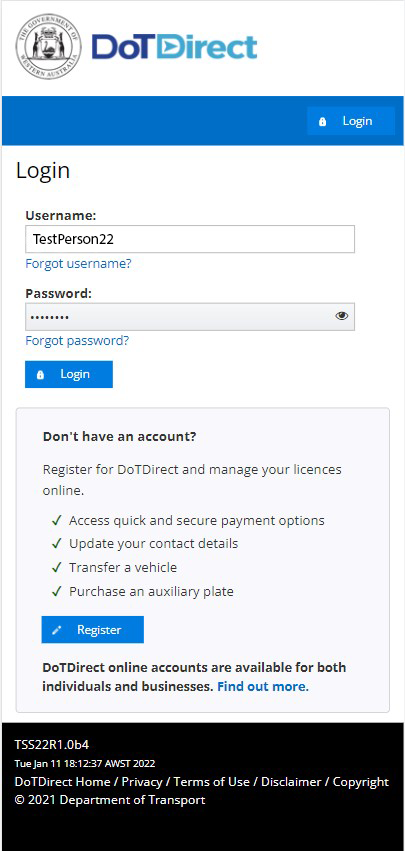
2. Select your profile if required.
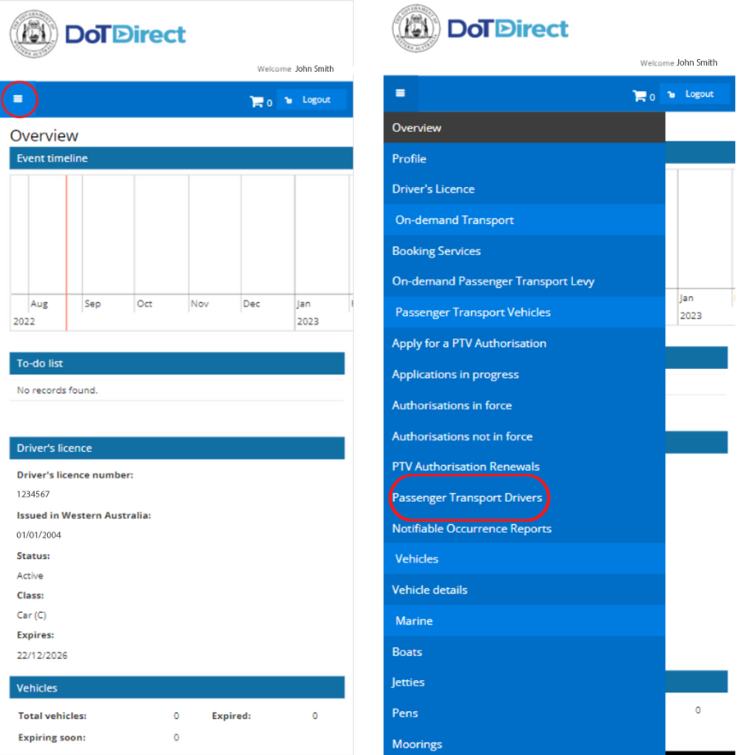
3. Tap the menu icon in the top left corner at the top of the screen, then tap Passenger Transport Drivers.
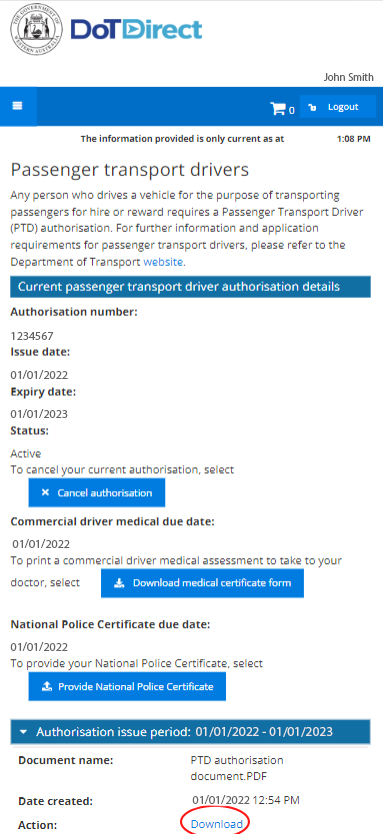
4. Scroll down the page to find the heading Authorisation issue period. Click on the download button and save the document for your records.
Computer
1. Log into your DoTDirect account on your computer.
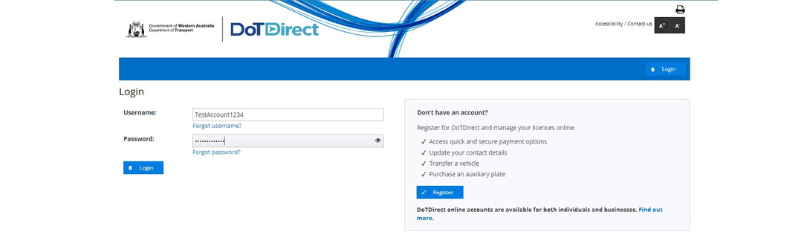
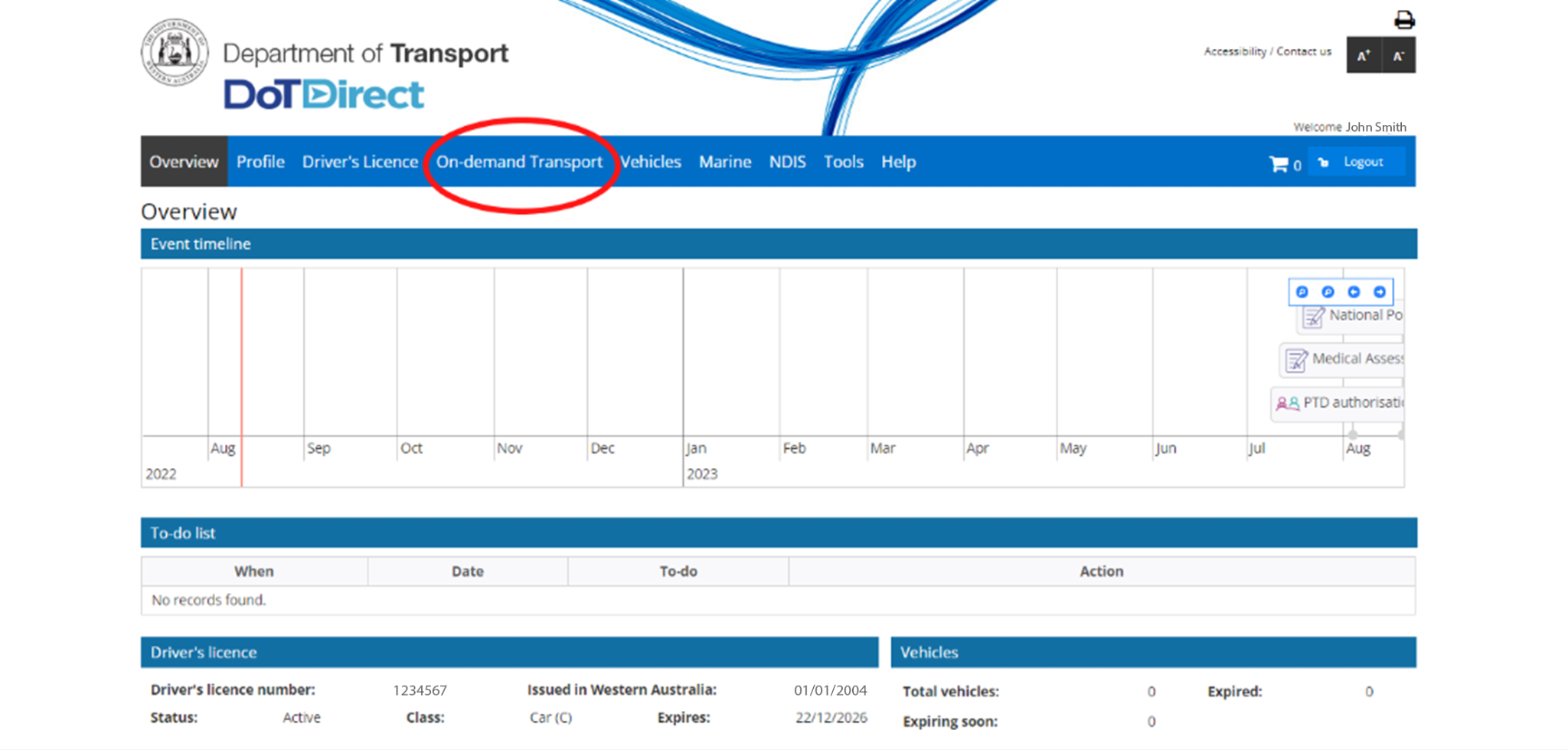
2. Click the On-demand Transport tab at the top of the screen.
3. Click Passenger Transport Drivers.
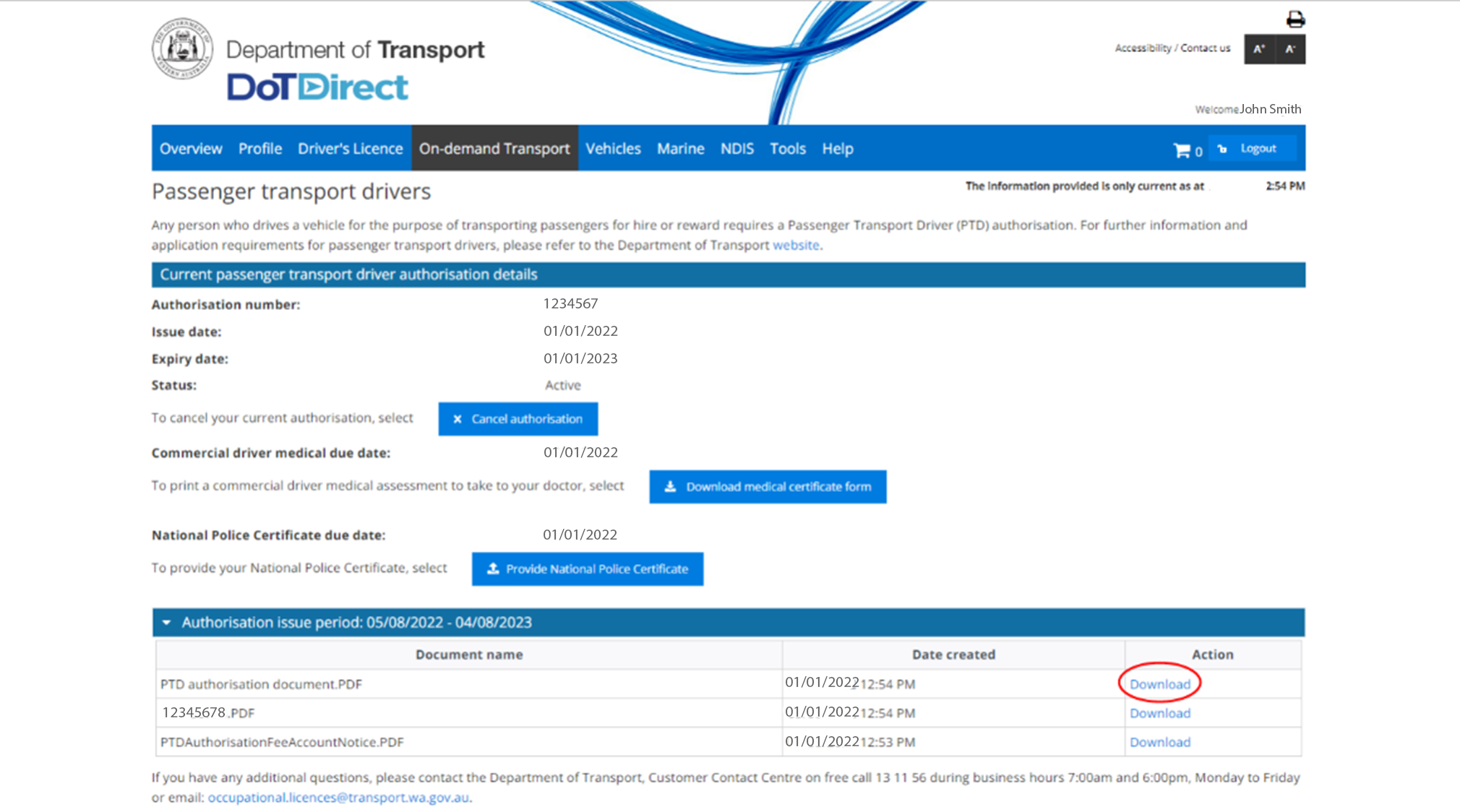
4. A list of all the documents related to your PTD authorisation period will be displayed under the heading Authorisation issue periods.
5. Click the Download button next to the PTD authorisation document. Save the document for your records.
The Driver and Vehicle Industry Dashboard (DVID) allows authorised on-demand booking services (ODBSs) to check the licence, registration and authorisation status of their drivers and vehicles – your ODBS can check the validity of your PTD authorisation at any time. Your on-demand booking service (ODBS) may also have additional requirements for confirming your PTD authorisation status.
Renewing your PTD authorisation
PTD authorisations are valid for a period of 12 months
Six weeks prior to the expiry of your PTD authorisation you will receive an email with an invoice for your next PTD authorisation fee, which must be paid through your DoTDirect account. If you don’t receive this email, make sure to check the junk mail folder in your inbox. PTD authorisation fees are available at the Fees and charges page.
Once you have paid your PTD authorisation renewal fee via DoTDirect, you can download a copy of your payment receipt and your new authorisation document will be emailed to you.
To maintain a PTD authorisation, you will need to:
- pay the annual authorisation fees when the PTD authorisation is up for renewal
- provide a new NPC every five years, and
- undergo a medical assessment on an ongoing basis at an interval dependent on your individual medical assessment certificate (up to five years).
See Renewing NPCs and medical assessments to learn how to submit a new certificate.
If your driver’s licence is not valid (i.e. it is expired, suspended or cancelled), your PTD authorisation renewal payment will not be accepted. You must have a valid driver’s licence to hold a PTD authorisation.
See the Passenger transport driver (PTD) user guide for detailed steps on how to renew a PTD authorisation.
Early renewal of a PTD authorisation
You can pay your PTD authorisation renewal up to 6 months prior to the expiry date of your current PTD authorisation.
Late renewal of a PTD authorisation
You can still make payment up to six months after the expiry date, however you are not authorised to transport passengers for hire or reward until the PTD authorisation fee is paid. The expiry date of the authorisation does not change if you make payment after the expiry.
Once a PTD authorisation has expired for more than six months, it is considered lapsed and you will need to make a new application.
What happens if I don’t pay the PTD authorisation renewal?
If the fee is not paid before your PTD authorisation expires, your PTD authorisation will expire at midnight on the expiry date, and you will no longer be authorised to transport passengers for hire or reward.
Renewing NPCs and medical assessments
Providing a new NPC
You must provide a new NPC to DTMI every 5 years. Your NPC expiry date can be found in your DoTDirect account. DTMI will also send you an email reminder 3 months before your new NPC is due.
Before your NPC expires, you can submit a new NPC by:
- uploading it in your DoTDirect account, or
- emailing it to occupational.licences@transport.wa.gov.au.
If you do not provide a new NPC before the expiry date, you can only submit a new NPC via email. After an NPC has expired, it cannot be updated via DoTDirect.
Note: Do not attempt to resubmit an NPC by starting a PTD authorisation application. Doing so will result in the cancellation of your PTD authorisation.
How will I know when to get a medical assessment?
You will receive a medical assessment notice approximately 3 months before your existing medical assessment is due to expire. If you hold a PTD authorisation, you can also view your medical due date in your DoTDirect account.
You can access the medical assessment certificate form to take to your medical professional through your DoTDirect account. This form will be pre-populated with your details.
Your doctor may submit your completed medical assessment to DTMI directly or you may upload a copy via DoTDirect. When DTMI receives your new medical it is assessed against the Austroads fitness to drive standards. This may mean that the medical period assigned to you by DTMI is different to what your doctor recommends.
How can I check when my next medical assessment is due?
If you have a PTD authorisation, there are two ways that you can check when your next medical assessment is due.
- The PTD authorisation document that DTMI emails to you shows your next medical assessment due date.
- Log into your DoTDirect account and select On-demand Transport at the top of the page, then click "Passenger transport drivers" – details about your PTD authorisation will appear, including your next medical assessment due date.
Alternatively, you can call DTMI on 13 11 56 to ask when your next medical assessment is due.
Cancelling your PTD authorisation
If you no longer wish to hold a PTD authorisation, you can cancel it in DoTDirect.
To cancel your PTD authorisation, you need to:
- Log into DoTDirect.
- Select the On-demand Transport tab at the top of the screen, then click Passenger Transport Drivers.
- Click the Cancel authorisation button.
- Select Continue to confirm that you wish to cancel your PTD authorisation.
- You will be taken back to the PTD authorisation landing page of your DoTDirect account, and you will not longer see a PTD authorisation listed.
- You will receive an email notifying you that the PTD authorisation has been cancelled.
Note: your PTD authorisation will be cancelled immediately. If you wish to hold a PTD authorisation again in the future you will have to apply again and pay the associated fees. No refunds can be given.
If there is no other reason DTMI requires you to provide medical assessments, this requirement will be removed from your record.
How to cancel your application
If you decide not to progress with your PTD authorisation application, you can cancel it in DoTDirect.
Your application can be cancelled any time after you pay the application fee and before your application is assessed and you pay the authorisation fee.
To cancel your PTD authorisation application, log into DoTDirect and:
- Select the On-demand Transport tab at the top of the screen.
- Click Passenger transport drivers.
- Your current application details will show. Click the “Cancel application” button.
Changed your name? Request an updated version of your PTD authorisation
If you have changed your name with DTMI, you can now request and pay for an updated version of your PTD authorisation via DoTDirect.
Note: you can still download copies of your existing PTD authorisations for free.
To request an updated version of your PTD authorisation, follow the below steps.
- In your DoTDirect account, select the On-demand Transport tab at the top of the screen, then Passenger Transport Drivers.
- Select Request new version of authorisation document.
- Tick the checkbox to indicate you have reviewed the order details and confirm the information is correct, then select Add to trolley.
- Review your trolley to confirm it is correct, then select Next.
- Click the checkbox to confirm you have reviewed the items and that all the information is correct, then click Proceed to payment.
- Enter your payment details and click Process payment.
- Once your payment has been completed, your updated PTD authorisation document will be emailed to you. You can also download a receipt of your payment.
Note: if you have changed your name, you must ensure that your passenger transport driver identification documents match the new name on your driver’s licence, and inform your on-demand booking service of your new name, so they can update their records.